November 20, 2026 to November 26, 2026
AI Command
Plan first mode. Pick Plan first in Command mode picker when you want a batch of changes made in one go. Command only reads at this stage: it looks at your item and our docs, asks about anything it can’t work out, then shows a plan card with numbered steps. Nothing changes until you click Approve. Command then runs the steps and sends one report at the end. Click Decline to keep planning, or type a change and Command writes a new plan.
Build a Route Hub with a guide. Ask AI Command, Claude, or ChatGPT for a Route Hub and it now reads your demos first, recommends a setup, and asks one question at a time, such as where form answers should go. It then shows a short plan and builds only after you click Build it, checking in after each piece. The Route Hubs page and the Route editor also suggest prompts to start from, like “Which Route Hub fits my demos?”. Route Hubs are on Growth and higher.
One chat per item. A chat you start on a demo, showcase, AI Demo Agent, Route Hub, Demo Hub, or video page now stays with that item, so Command can’t change a different demo after you switch pages. Open another item and the chat tray names the item the chat belongs to, with buttons to open it or start a chat for the page you’re on. Chats started from the dashboard or a list stay general and can still work across several items. Chat history shows the item each chat belongs to.
MCP
Change settings on up to 100 demos at once. The new bulk_update_demo_settings tool applies one settings change to up to 100 demos in a single call. Asking Claude or ChatGPT to update every demo in a folder now takes one step instead of one call per demo, and the reply lists which demos were updated, unchanged, or failed.
AI Video Studio
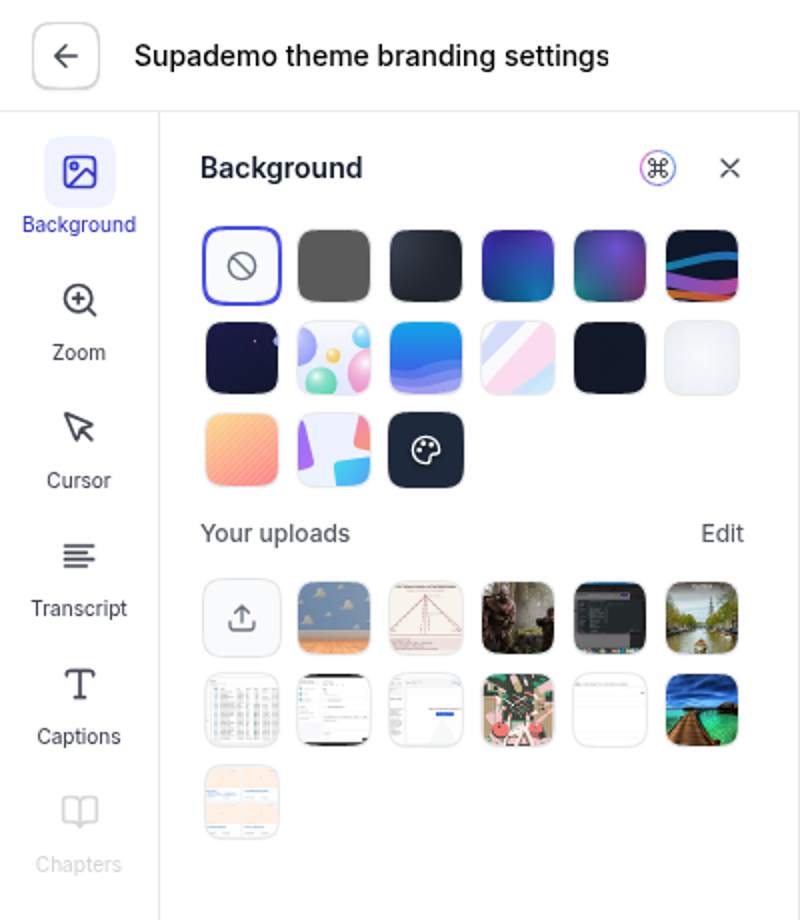
Your uploads stay in the Background panel. Background images you upload now sit in a Your uploads section of the Background panel, so you can try a preset and switch back to your image without uploading it again. Click Edit to delete the ones you don’t need. If an image is used somewhere else, you’ll see how many places use it before it’s deleted. Uploads are shared with the demo editor’s background picker.
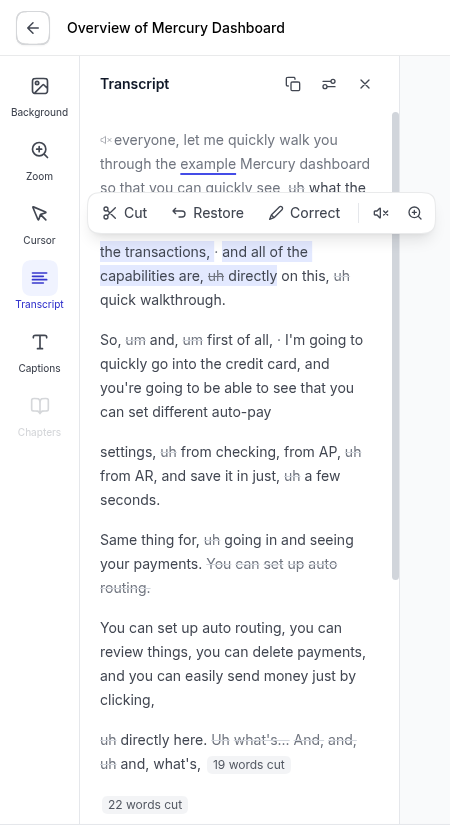
Faster transcript editing. One click on a word selects it, so Cut, Correct, and the other actions appear without a double click. Drag past the top or bottom of the transcript and it scrolls with you, so long selections no longer stop at the edge. Copy transcript in the panel header copies the whole transcript as paragraphs, and ⌘A selects every word.
Recording
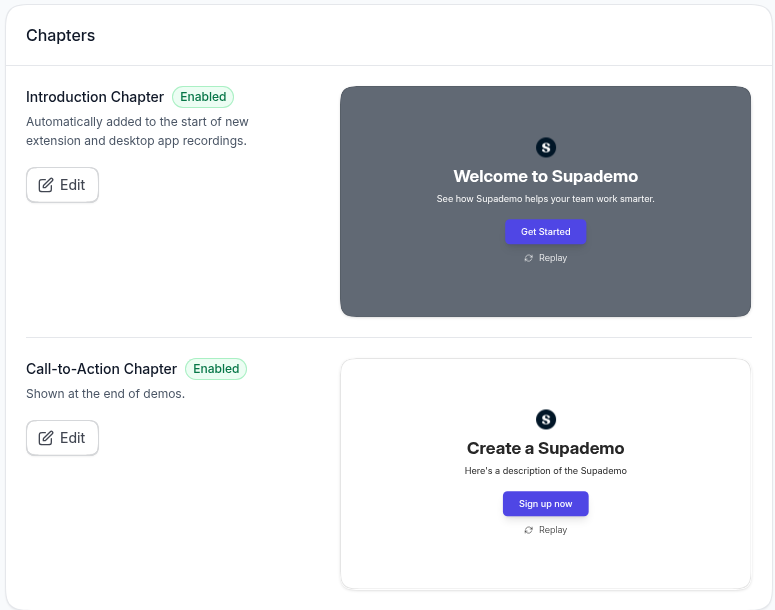
Start pages on desktop app recordings. Windows and macOS app recordings now open with your theme’s start page, the same as Chrome extension recordings. Edit its heading and description, or turn it off, under Introduction Chapter in Settings → Themes. If you never edited it, it shows the default text “Create a Supademo in minutes”.
Showcases
Offline download inside showcases. Demos that allow offline download now show the download button when they play inside a showcase too, so viewers can save the demo for a meeting with no internet. Embeds on other sites still hide it.
Edit HTML
See when an HTML edit won’t show. On steps with a Hide, Redact, or Remove, HTML edits are left out of Preview and exports. The editor now shows a banner when that happens, so you find out before you share the demo.
Reset edits inside. When Edit HTML is greyed out because elements inside your selection have their own edits, a Reset edits inside button now clears them for that step in one click. One Undo brings them all back.