November 13, 2026 to November 19, 2026
Themes
Multiple themes. Business, Growth, and Enterprise workspaces can now save as many themes as they need, for example one per product line, region, or partner, so you stop re-branding demos by hand. Each theme has its own logo, share page button, watermark, favicon, font, player controls, hotspot style, and intro and CTA chapters. Set them up in Settings → Themes. Your current branding becomes the Default theme, which every plan keeps.
Restyle many demos in one save. When you save a theme, choose whether the change goes to new demos, every demo, or only the demos and folders you pick, then click Apply to N demos. To switch a single demo, open its Settings and pick a theme in the new Theme tab. Hotspot text, chapter text, and button labels stay as you wrote them.
Start new content on the right theme. When your workspace has two or more themes, uploads, showcases, Route Hubs, Demo Hubs, and AI Demo Agents ask which theme to use before they're created. The Chrome extension asks before you record, and the demo editor asks when you add a chapter.
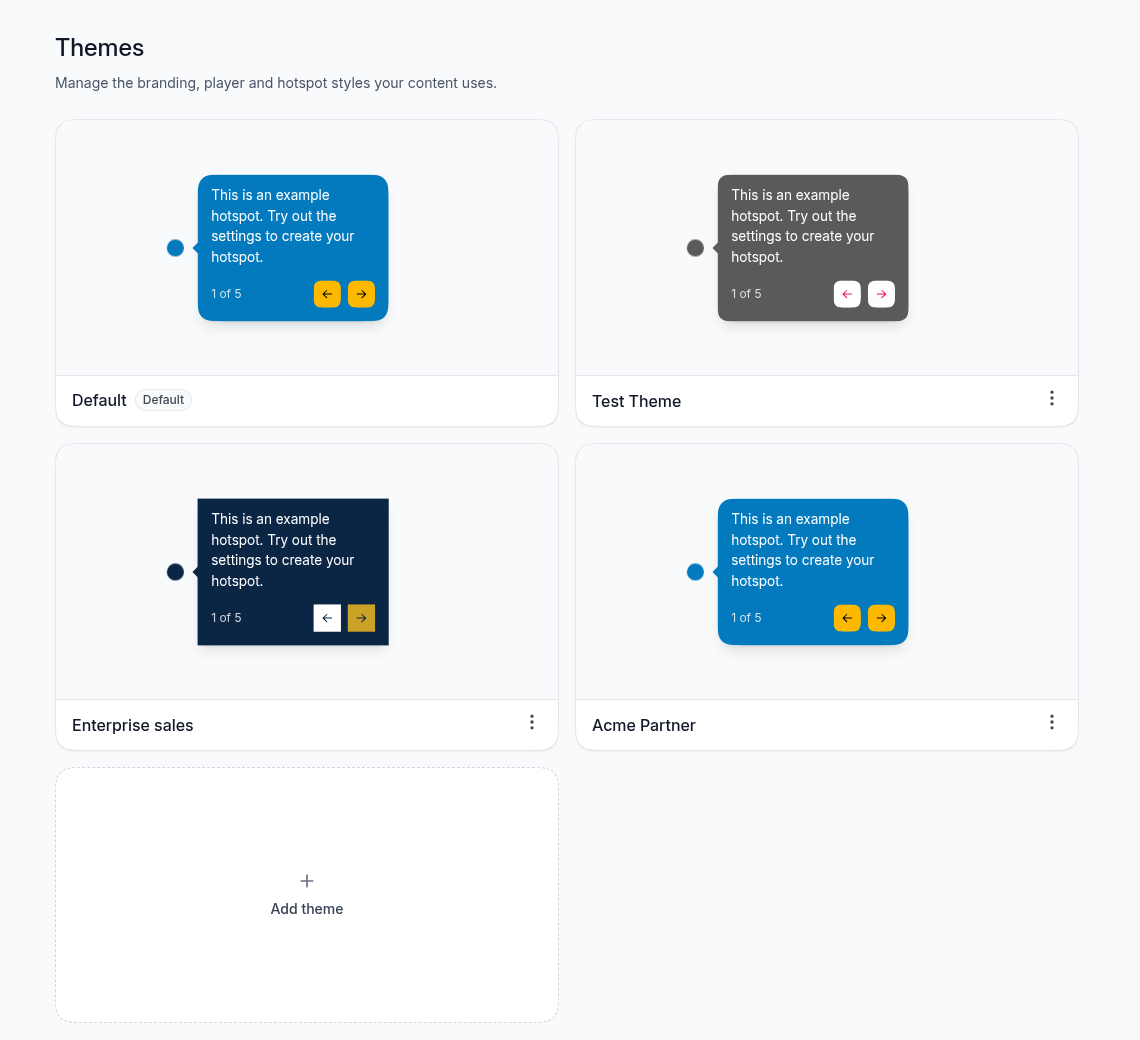
Brand a folder's share page. In a folder's Share window, pick the theme its share page uses. Subfolders use it too unless you give them their own.
Themes through MCP. AI assistants connected through MCP can list, create, edit, and apply themes, set a folder's theme, and create demos, showcases, hubs, and agents with a theme already applied.
Showcase
Translate a showcase. You can now translate the text you write in a showcase: its name, description, and button, section names and descriptions, item names, and the heading, description, and button of its chapter. Open ⋮ → Settings → Translations → Open Translations Hub and pick a language. AI writes a draft you can edit, and nothing goes live until you click Save translation. A viewer watching your demo in Spanish now sees Spanish section names around it instead of English ones. To send the showcase in a language, add ?lang= to its link, for example ?lang=es for Spanish. Available on paid plans.
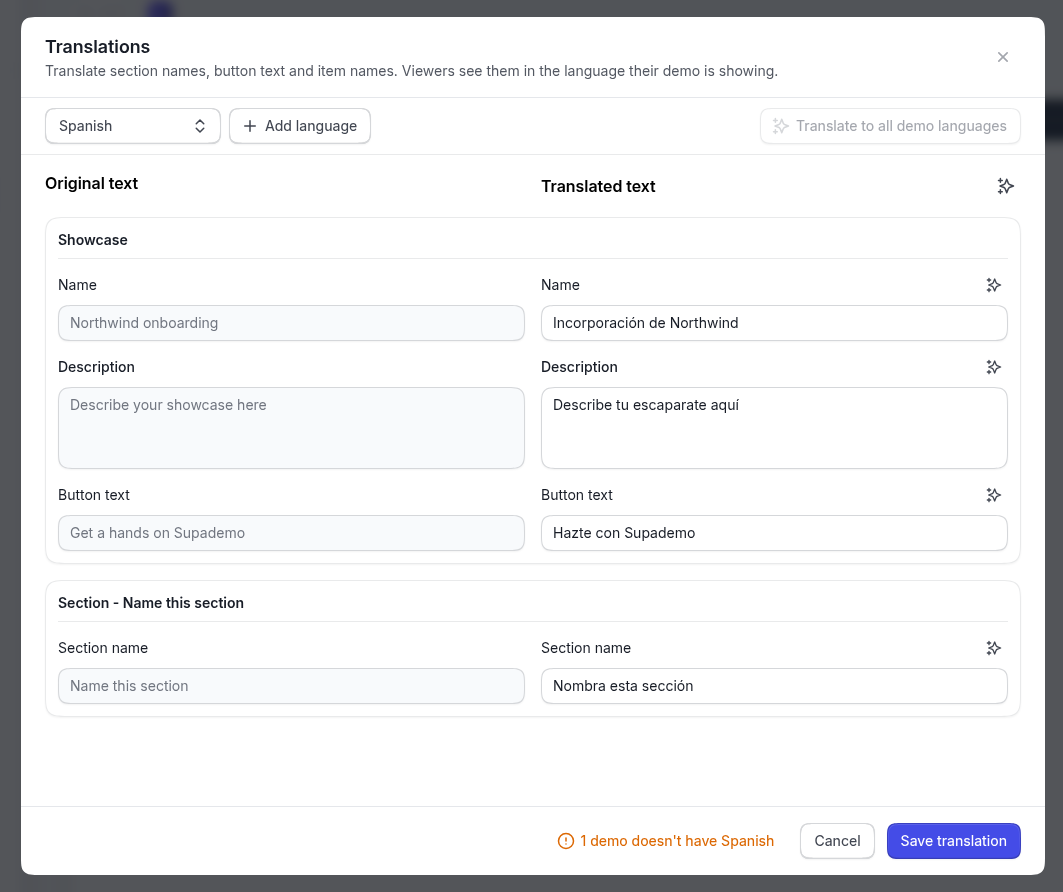
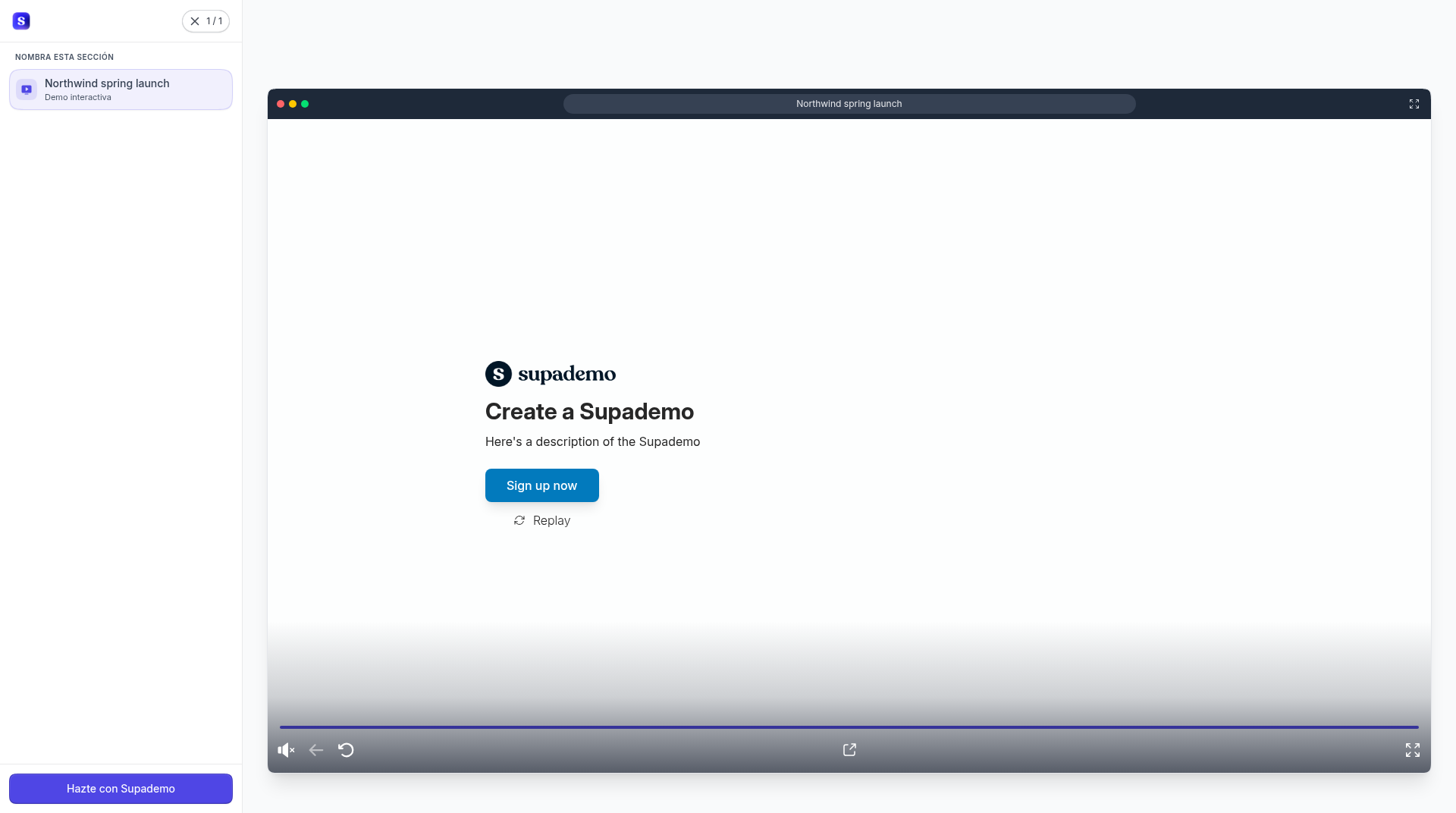
Showcase labels in 61 languages. The showcase's built-in labels, such as the sidebar, the next-demo prompt, gallery filters, and item counts, now follow the language of the demo that's playing, or the ?lang= in your link. You don't have to translate them yourself.
Add every demo language in one click. Translate to all demo languages adds each language your demos are translated into that the showcase doesn't have yet. It never changes a translation you've already saved, and if one language fails, you retry only that one.
See what needs updating. When you edit showcase text after translating it, a Translations out of date badge in the editor header lists the languages that need an update. Click it to open the hub. The hub also counts the demos in the showcase that don't have the language you're working on and links to each one, so you can fill the gaps.
Duplicates and MCP keep up. Duplicating a showcase copies its translations. AI assistants connected through MCP can list, generate, refresh, edit, and delete showcase translations.
Exports
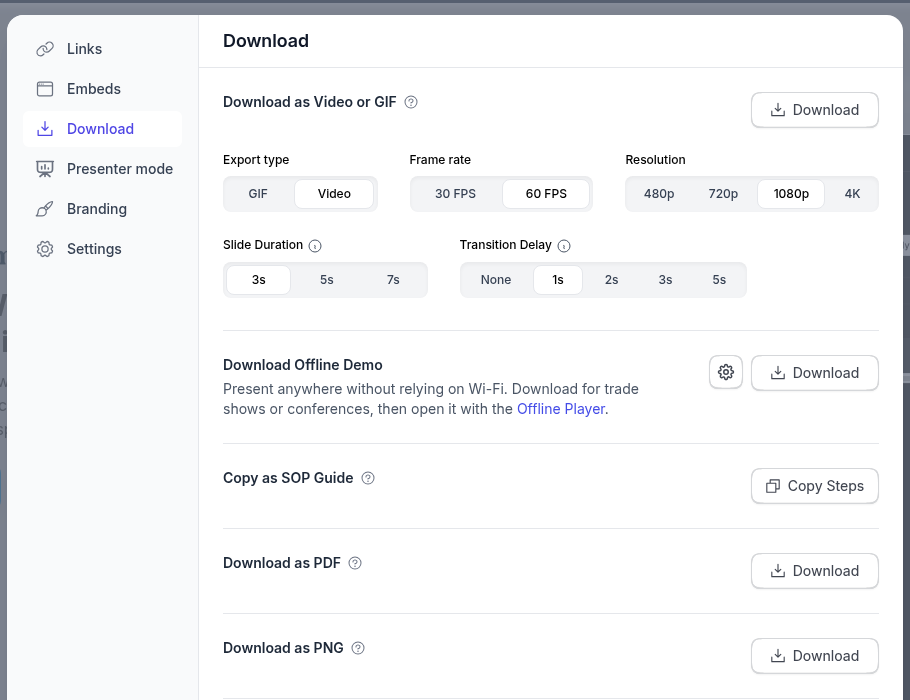
All your exports on one page. The new Exports page lists every video, GIF, PDF, and PNG export in your workspace, with who exported it and whether it's running, ready, or failed. Search by name, filter the list, download a file again, retry a failed export, or delete one you don't need. Open it from the account menu under Integrations, or search "Exports" with Cmd+K. Finished files stay downloadable for 3 months.
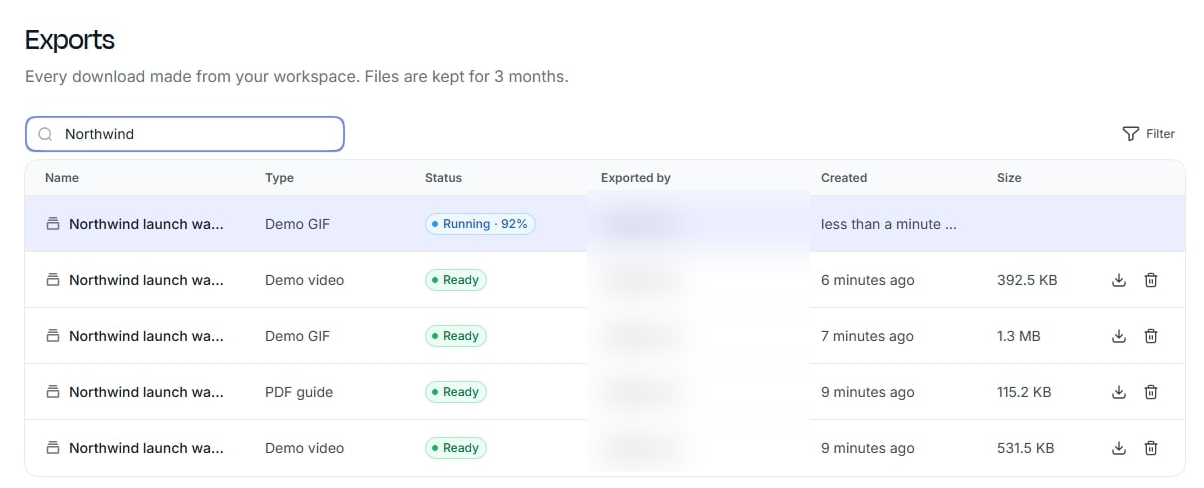
Keep working while an export renders. Exports you start now show in a tray at the bottom of every page and move from running to Ready with a Download button, or show why they failed. In the share window, Download turns into View progress while a video, GIF, or PDF renders, and opens that export on the Exports page. The video page's Share window does the same while its MP4 renders. Ready emails link straight to the export.
Repeat exports come back instantly. If you export a demo or video again without changing it, you get the last file right away with a note that it's unchanged, instead of waiting for a new render. Exports of HTML demos still render fresh each time.
Export up to 250 steps. Video, GIF, PDF, PNG, and SOP exports now include up to 250 steps on every plan, up from 75. If a demo has more, the Download tab says which downloads keep only the first 250. Video exports can run up to 60 minutes and GIFs up to 5 minutes.
Faster answers when a video can't export. If a recording hasn't finished saving, exporting it now tells you right away instead of failing a few seconds later and sending a failure email.
AI Video Studio
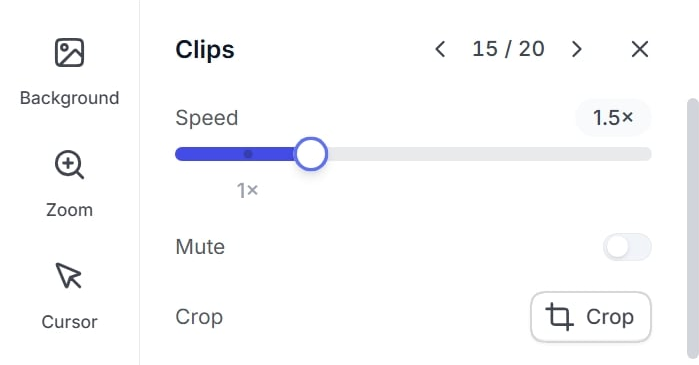
A Clips tab. Click a clip on the timeline to open the new Clips tab. Set its speed from 0.5× to 4×, mute it, crop it, or delete it, so you can speed through a slow loading screen or silence a noisy section without cutting it. Select several clips to change their speed or mute them together.
A refreshed editor. While the video is paused, hover over the timeline to preview that frame without moving the playhead. Press Space to play from there, or S, I, or O to split or trim at that spot. Undo and Redo now sit in the header, the control bar has Split, Duplicate, and Mute all, and each button's tooltip shows its shortcut.
Recordings name themselves. A new screen recording now gets a title from what it shows, like "Refund walkthrough", instead of "Screen recording - Nov 9", so you can tell recordings apart without opening them. The title appears a minute or two after you stop recording. Titles you've written yourself are never changed.
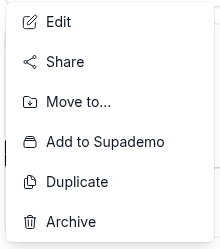
Duplicate a video. The ⋮ menu on a video card now has Duplicate, on the Videos page and inside folders. The copy keeps every edit and the original's link setting, and lands in the same folder with "(Copy)" added to its name, so you can make a variant without redoing your edits. Duplicate is on paid plans, and AI Command can duplicate videos too.
Know when your link is copied. When the Chrome extension copies your video link as you stop recording, the video page now confirms it. If the extension couldn't copy it, the page shows a Copy link button.
Chapters
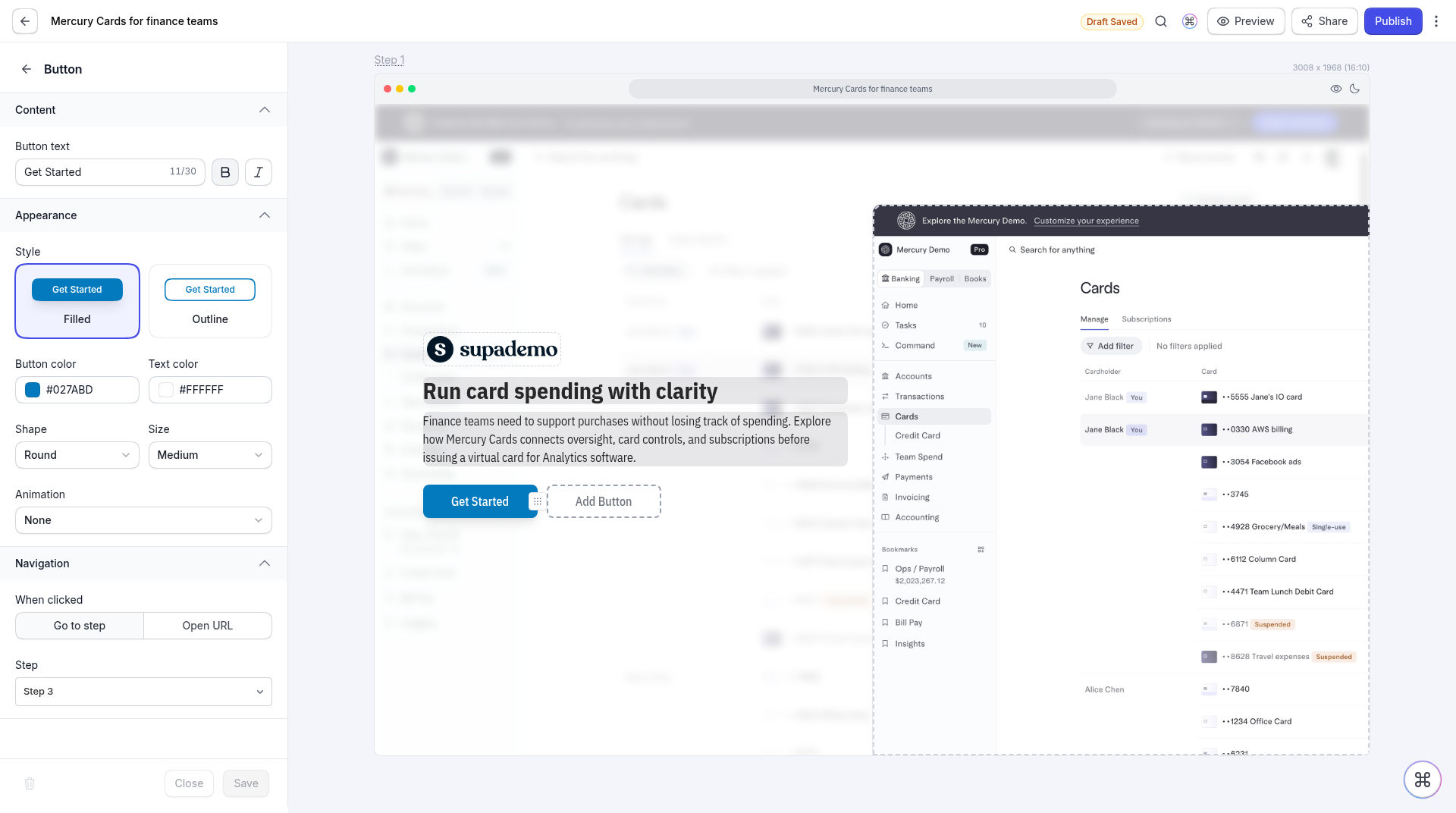
Button styles and text sizes. Click a chapter button to style it in its own panel. Pick Filled or Outline, button and text colors, a shape (Sharp, Soft, Round, or Pill), a size (Small, Medium, or Large), and an animation, so a chapter's call to action matches your site's buttons. Headings and descriptions have a new Text size menu in the format toolbar. Chapters you don't touch look the same as before.
Embeds
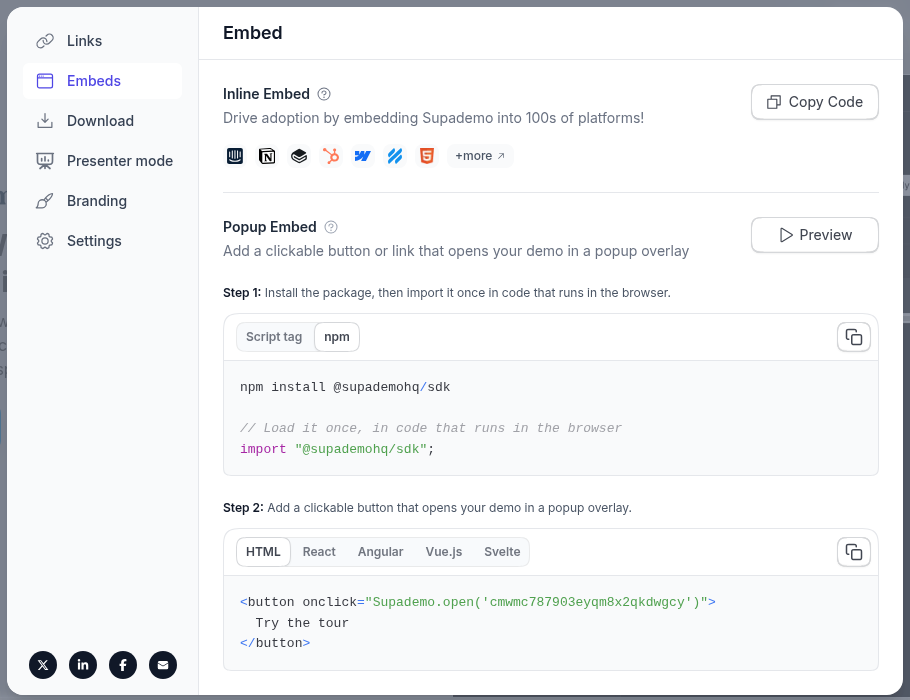
Install with npm. The popup embed, AI Demo Agent embed, and Demo Hub install screens now offer the npm package @supademohq/sdk next to the script tag, so teams that manage scripts as dependencies can version it with the rest of their code. The MCP tool that returns Demo Hub embed code includes it too.
Cognito Forms. You can now embed Cognito Forms in chapters and showcases, so leads fill out your existing Cognito form without leaving the demo.
HTML editor
Select what's behind a modal. Hold Alt (Option on Mac) and click to select the content underneath a modal or overlay, so you can edit the page behind it without closing the modal first. Each Alt+click moves one layer down.
MCP
Showcase chapters. AI assistants connected through MCP can now add, edit, and remove the Form or Password chapter in front of a showcase. Leads it already collected stay when you remove it.